Showing posts with label Computer. Show all posts

Saturday, June 14, 2008

Scheduled Tasks Error - "0x80070005: Access is denied."

For some reason Microsoft chose to throw the following error rather than explain itself:
An error has occurred while attempting to set task account information.
The specific error is:
0x80070005: Access is denied.
You do not have permission to perform the requested operation.

Of course, this seems like some deep, dark security setting or registry modification at first reading. Then, after multiple internet searches you may be led to a similar conclusion. However after digging deep I found the following Google discussion in which the questioner discovered the solution on her own -> Backup Task Scheduler Error 0x80070005: Access is denied.

So here's the deal:
PROBLEM: I'm trying to schedule a task that wakes the computer, logs on, and runs at a scheduled time. However, when it asks me for a password (see picture below), I just hit "OK" since I don't have my computer's password enabled. Then it gives me the above error.


SOLUTION: Reopen the scheduled task and check the box titled "Run only if logged on" (see picture below). You'll find this in the bottom left side of the window.


That should do it.

Note that if you do have a password enabled, all bets are off. You'll simply input your password and uncheck the "Run only if logged on" box. This way the task will log on using the password you enter in the box two pictures above in this post. I do remember having an issue with this in the past, but can't remember what it was or how to solve it.


Good evening

Donald W. Hasson
http://www.linkedin.com/in/donaldhasson
http://donaldhasson.blogspot.com

Tuesday, December 05, 2006

Microsoft Excel Visual Basic Functions

Here's how to create custom Excel functions.

I finally broke down and wrote my own function for root mean square (RMS). This is an extremely common statistical function that Excel (2003 in my case) does not have. Usually I just type the following code

=SQRT(SUMSQ(A:A)/COUNT(A:A))

I figured writing this function would be very simple. It wasn't too hard but was not very intuitive for someone who had never done it before. So here's how it's done.

Phase 1 - Write Function

1. Go to Tools > Macro > Visual Basic Editor; or press ALT+F11.
2. Once in the Microsoft Visual Basic window got to Insert > Module.
3. In the Module window, type the code for your function. For example, here is my simple function:

Function RMS(values)
'
' This computes the root mean square of entered values
'
RMS = Sqr(WorksheetFunction.SumSq(values) / WorksheetFunction.Count(values))
End Function
"Function" tells VBA it's not a subroutine or macro. "RMS" is the name of the function and you must end the function with the function name being equal to desired output value. For me it was just one simple line. The reason I have words and periods (library names) before the Excel normal Excel functions I used is discussed below. "End Function" is auto-generated by VBA. Also, comments are any text after the apostrophe (') on a line. I have three comment lines that I used to make thing look clean and describe my function a bit.

Phase 2 - Saving as Add-In

Note: Follow these steps only if you want your new function in a new custom add-in. If you want your function in one of the add-ins you previously made, simply drag your new module into the modules folder of your existing add-in project (mine is called "VBAProject (Donald Add-Ins.xls)". The projects are in the "projects" window which can be viewed by View > Project Explorer (or CTRL+R).

1. Go to File > Save (where is the name of your spreadsheet file); or press CTRL+S
2. Click the "Save as type:" drop down and select "Microsoft Office Excel Add-In (*.xla)".
3. You will be directed to your computer's "AddIns" folder. Simply type a descriptive name for your custom add-in functions (i.e. "Donald Add-Ins").

Interestingly enough you will not see your new add-in project directory structure in the Project Explorer window until after the new add-in is actaully "added in". You don't have to worry since it will be there when you go back to Excel. If, however, you'd like to see it leave VBA open go back to Excel and follow the below steps. When you're done, go back to VBA and you'll see it.

Phase 3 - Selecting the Add-In and Using the New Function

1. Go to Tools > Add-ins...
2. Check the box to the left of your new add-in, then click OK
3. To use the function simply type its name as you would any normal Excel function with the values in parentheses (i.e. RMS(A:A) was my function).

A couple other things I struggled with in writing the function:

1. You can't type functions in VBA exactly as you would in Excel. To see available function go to View > Object Browser (or press F2). You can do some basic searches, but it's not perfect. For example, you won't find SQRT (the square root function) in the search. But an internet search helped me find the Excel's SQRT is VBA's SQR (no idea why they did that - but Math details are here: http://msdn2.microsoft.com/en-us/library/thc0a116.aspx). Otherwise I was able to find COUNT in the Object Browser search just fine.
2. You must tell VBA from which library to pull the object you're specifying. If you don't you see this error "Compile Error: Sub or Function not defined".

click below picture to enlarge...


You can find the libraries for the objects in the above-mentioned Object Browser. Find your object then click on it and the library will be at the bottom. For example,

Function Sqr(Number As Double) As Double
-> Member of VBA.Math <- or Function SumSq(...) As Double -> Member of Excel.WorksheetFunction <-

So you know that SQR is a member of the "Math" libray. However, since that library is already in VBA it will be recognized simply by "Sqr" without a library declaration. However for the SumSq function you need to tell VBA where this library is since it's an Excel library. The way you tell VBA this information is when using the object in your function simply type the name of the library before the name of the object with a period in between (i.e. WorksheetFunction.SumSq()).


Here is a good website on building functions and add-ins. It may be more helpful than my directions:

http://www.fontstuff.com/vba/vbatut03.htm

Some other good discussions:
http://www.eng-tips.com/viewthread.cfm?qid=91843&page=9
http://www.vertex42.com/ExcelArticles/user-defined-functions.html
http://office.microsoft.com/en-us/excel/HA010548461033.aspx?pid=CL100570551033

Thursday, October 12, 2006

PERL - Convert Space Delimited to Comma Delimited

Here's some PERL code to convert a list of space-separated or space-delimited variables to comma-separated variables (CSV) or comma-delimited variables.

use strict;

my $indata = $ARGV[0]; # Load a file name from the command line

system "copy $indata $indata-orig"; # Tell DOS to make a copy of file

open(DATA, "<$indata") or die "Couldn't open $indata for reading:$!\n"; my $outdata = "$indata-"; open(OUT, ">$outdata")
or die "Couldn't open $outdata for reading:$!\n";

my @array;

while (<DATA>) # Read the incoming data line by line
{
s/^\s+//; # replace the 1st space with blank (delete first space)
s/(\n)+//; # delete newline at end (probably didn't need to do like this
s/l//i; # for my data I needed to get rid of an "L" in the data
s/(\s)+/,/g; # replace all groups of spaces with a comma

@array = split (',',$_); # Now put each record from the current line into an array
print OUT (join (",", $array[0], $array[1], $array[2], $array[4], $array[6]), "\n"); # then print this array with just the data you want to your output file

# You probably won't have to do the last 2 steps the way I have them. I needed to only bring out a few of the columns. You can just print $_ (which, in PERL, is the most recently affected variable) to your output file.
}
close (DATA) or die "could close $indata: $!\n";
close (OUT) or die "could close $outdata: $!\n";

# I wanted to get rid of junk files and rename my new file the the original filename. You don't have to do this either.
system "del $indata";
system "rename $outdata $indata"
If you have questions, just send me a comment and I'll be glad to answer if I can.

Good afternoon

Donald W. Hasson
http://www.linkedin.com/in/DonaldHasson
http://DonaldHasson.blogspot.com

Monday, October 09, 2006

PERL - Bad File Descriptor

This is an easy one.

I got the error "Couldn't close 0.opt file: Bad file descriptor". As you may know the first part is my language and the part after the colon is the PERL error message "Bad file descriptor". There were a couple of other suggestions for what may be causing this and I've listed their discussion links below. But for me the problem was simply that I had closed the file already in another subroutine. For some reason PERL does not respond with "File already closed" as would be logical.

By the way, I'm on Windows XP using ActivePERL 5.8.8.817.

Other possibly useful links:
http://www.webmasterworld.com/forum13/4039.htm - Bad directory location
http://www.velocityreviews.com/forums/t26003-why-quotbad-file-descriptorquot.html - Bad zip file or non-zip file
http://coding.derkeiler.com/Archive/Perl/perl.beginners/2004-01/1301.html - Troubleshooting suggestions

It also could have to do with permissions on the file.

Good evening

Donald W. Hasson
http://www.linkedin.com/in/DonaldHasson
http://DonaldHasson.blogspot.com

Friday, September 29, 2006

Outlook 2003 Signature

I have started using email signatures occasionally at home. At the office I have Outlook 2003 and I just got the same version at home. I have an icon at the top of a new mail message seven from the left title “Signature” at work. I use this very regularly because I don’t want a 20-page signature with every email I send. So I choose the “formal” signature for appropriate emails. At home, however, no such icon existed and no menu or pulldown or whatever. When I tried help it returned the suggestion to open up the email signature editing box, copy then paste the desired signature into the email. This didn’t sound right. So after some snooping I realized the difference was that at home I chose to have Word be my email editor. After changing this allow Outlook to create the emails, the icon appeared right where it should. I realize Word offers some nice “idiot proofing”, but I’ll just check my emails a bit more carefully now.


Good evening

Donald W. Hasson
http://www.linkedin.com/in/donaldhasson
http://donaldhasson.blogspot.com

Sunday, September 24, 2006

McAfee Script Error

I have Windows XP Pro SP 2 running McAfee VirusScan 10.0.

Does this error look familiar?
An error has occurred in the script on this page.

Line: 752
Char: 5
Error: The task has been configured with an unsupported combination of account settings and run time options.
Code: 0
URL: mcp://C:\PROGRA~1\mcafee.com\vsooui.dll:mgavprop.htm

Do you want to continue running scripts on this page?
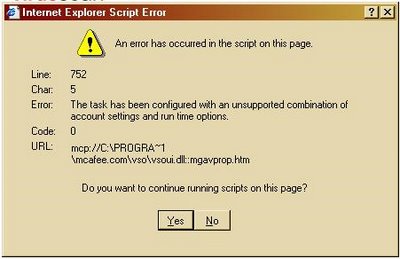
You may see this error if you attempt to view the VirusScan options page one of two ways - 1) right click on the red McAfee "M" in the Windows notification area (near the clock), go to VirusScan then Options OR 2) Go to the McAfee Security Center by double clicking on the red "M" or go through the Start menu, then click on "Configure VirusScan Options". Either way gets you to the same place. But you may get the error which is the reason for this post.


This discussion on McAffe's support site claimed to have fixed the problem but all he did was remove the VirusScan task from Windows Scheduled Tasks program. What if you DO want this task scheduled? And who wouldn't? It's virus protection software which should run EVERY night as a scheduled scan scanning all your attached hard drives and partitions - and it should do all this while you sleep. Simply deleting the task is not a good answer.

Here's what I discovered the actual culprit was: In the properties of the task in the Windows Scheduled Tasks program, I deselected "Run only if logged on". Allow me to sidetrack here for the purposes of explanation and edification: Most people say your computer should be password protected for many reasons. Thus, I believe XP Pro (not Home Edition) is the way to go. So, following good advice, I have XP Pro and have my computer set to require a password upon returning from Hibernation. So when VirusScan runs in the middle of the night after the computer has been hibernating for several hours, it must run even if not logged on. Now back to the main issue. You can see for yourself. If you get the above error message, deleting the task and resetting it in McAfee will only fix the problem until you go in to the VirusScan task and uncheck the aforementioned "Run only if logged on" box (which you can only do in Windows Scheduled Tasks. You will instantly see the error when you attempt to view the VirusScan options page (using the method detailed above). Clearly this is an issue with McAfee. But finding the technical support less than helpful I was forced to create a workaround - which I am now quite happy with.

Again, XP Pro with VirusScan v10.0.
What you must do is create a batch file (good tutorial here) (or command file) which will run VirusScan for you. Open Notepad and paste the below text:
c:\PROGRA~1\mcafee.com\vso\mcmnhdlr.exe /runtask:0
Save this file as something obvious (I called it "Scheduled Run McAfee.bat"), but it MUST have the ".bat" extension. It could just as easily be called "run_scan.bat" if you like. Additionally, I saved it in an obvious location on the hard drive (C:\Program Files\McAfee.com) so I could find it easily later, which I suggest. Now if you were to double click on this newly created file, it would start running a full system scan. I have not completely figured out the command line switches (these are the groups of text after forward slashes ("/") at the end of the command line). Right now I have "/runtask:0" (that's a zero at the end). I would think there's a way of setting up different scanning configurations (scan only internal hard drives, scan only certain folders, etc), but I have not figured that out yet and would rather everything be scanned. It runs in the middle of the night anyway.

The final task is the actual scheduling of the newly created batch file. Go to Start -> All Programs -> Accessories -> System Tools -> Scheduled Tasks. Once open, click on "Add Scheduled Task". This brings up "Scheduled Task Wizard". Click "Next" on the first screen, then on the 2nd screen click "browse". Find your file, click on it then click "open". On the next screen name your task whatever you want and select how often to perform the task (I recommend "Daily") then click "Next". This can all be changed later if you want, by they way. Now set the time you wish to start this task (I recommend middle of the night) and you can change specifics of how often it's run (again, I recommend "Every Day", but if you selected "Weekly" or "Monthly" on the previous screen, this won't be an option) and click "Next". The next page may ask you to enter a password if you have XP Pro and have set up this feature which I recommend, then click "Next". The last page tells you that you were successful (if, in fact, you were that is) and gives you an option to check the "Open advanced properties for this task when I click Finish" box. We want to see advanced properties so click the box and then click "Finish". Be sure "Run only if logged on" is NOT selected. If it is selected, click the box to uncheck it. Finally, click the "Settings" tab and check the box that says "Wake the computer to run this task". This allows the task to run even if the computer is in Stand by or Hibernate mode. Then just click "OK". There are a couple other advance properties that you can play around with or ask me about by posting a comment.

This will allow you to have scheduled task which runs when you are not logged on even in Hibernate mode and you won't get the above McAfee errors when trying to view options and other things.

One other note: Running a batch file is very powerful (see above link to tutorial). I have added one more line to my file so the file looks like the below:
c:\PROGRA~1\mcafee.com\vso\mcmnhdlr.exe /runtask:0
notepad C:\Documents and Settings\All Users\Application Data\McAfee.com\VSO\ODSLog\*your_login*_ods.log
(Lines 2 and 3 should be on the 2nd line together but word wrap throws it off; *your_login* is whatever your XP login name is; but better to go to the correct folder and find the actual name of the VirusScan log file). This additional line opens the log file upon completion of the scan. This allows me to see that McAfee did, in fact, run during the night and what the results were. I noticed on the McAfee forum there were many problems with VirusScan not even running. I don't have a good solution for this, but bringing the log to attention shows that you're okay.


0x8007007a: The data area passed to a system call is too small
This batch file idea may even fix the below problem which Microsoft didn't (at the time of this writing) have a good answer for and a real fix for. Though I can't prove the batch file will work since I don't personally have this problem.

Black M after scheduled scan runs
Using a batch file may even fix this problem, but, again, I don't know.

Something else is that changing the default browser from Internet Explorer did NOT affect the functionality of McAfee. McAfee technical support told me I must have IE as the default. This is not true.

Good afternoon

Donald W. Hasson
http://www.linkedin.com/in/donaldhasson
http://donaldhasson.blogspot.com

Saturday, September 23, 2006

Windows XP Repairs - Hibernate Mode

Seems you can boot off the Windows XP CD (press F12 if Dell at splash screen - or change BIOS(usually press DEL at first screen) to boot off CD first) and go into repair mode. I knew this was possible but didn't know there was a specific repair for the registry. Now this could be dangerous and I don't know how it will work, but it's worth a try. I certainly plan to backup the registry first. The method is to press "r" when the selection page comes up (this is after the Windows CD loads some stuff and the pages gives you the option to load windows, repair windows or exit I believe). I think it loads a couple other things for a few seconds then drops you into the C:\Windows directory in a DOS-looking screen. The command is "chkdsk /r" (no quotes). CHKDSK is a standard DOS program which checks many aspects of the computer's hard drive. The "/r" is a command-line switch which directs CHKDSK to check the Windows registry. I'll update you on how well it actually works. It may be better to purchase a piece of 3rd party registry repair software.

The problem I'm having is the laptop (Dell Latitude D820) looses the ability to go into hibernate mode after some unknown amount of time (1 day, hours, ???). After a restart the feature magically returns. I can't select hibernate from the Power Down menu, the Power Options menu doesn't show hibernate as an option and the hibernate tab (which allows you to enable hibernate mode) doesn't even show up. I have done many modifications to the laptop like reformatting the hard drive, reinstalling Windows, modifying some Windows features and installing a decent amount of useful software (virus protection, Windows Defender, firewall, cleanup software, in addition to the typical software). So I'm quite certain it's something I've done and not the fault of the computer.

Good afternoon

Donald W. Hasson
http://www.linkedin.com/in/donaldhasson
http://donaldhasson.blogspot.com